
Multi-Factor Authentication on Connect.
We're enhancing your security - here's what you need to know
To make your access even more secure, from 28 May we’re introducing multi-factor authentication. It’s a simple step that adds extra protection without changing how you use the portal.
What’s multi-factor authentication?
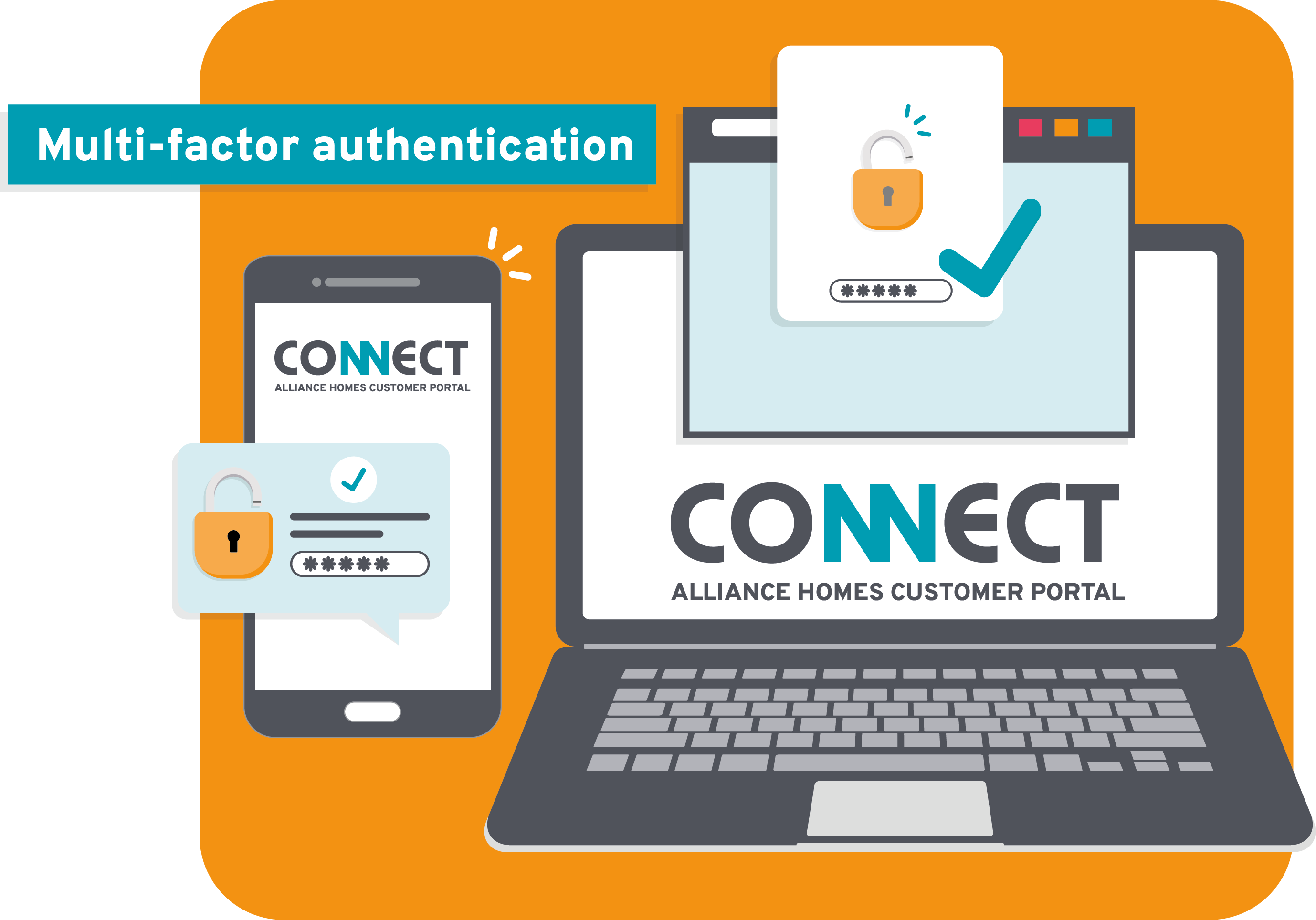
Multi-factor authentication (MFA) is a security feature that requires you to verify your identity using two methods before accessing your account. They are
- Your password
- Plus another method, this could be your phone, email or an authenticator app
Why multi-factor authentication is important
Cyber threats are becoming more common and more sophisticated. Passwords still work, but something stronger is better. Adding MFA is a simple step that makes your account much safer.
How to set up multi-factor authentication
MFA will go live on 28 May. When you log in, on or after that date, you will be asked to set it up. The process only takes a few minutes and all you have to do is follow the steps on the platform. If you want a step-by-step overview, take a look at our process in the below FAQs or if you need help you can contact us.
Multi-Factor Authentication FAQs
When you next log in you’ll be prompted to set up MFA in one of three different ways, they all make your account even more secure. Here’s an overview of the procedure.
Option 1: Set Up MFA Using SMS (Text Message)
- Choose “SMS” as your method.
- Enter your mobile phone number.
- Click Send Code.
- Enter the code you receive via SMS.
- Confirm to complete setup.
Option 2: Set Up MFA Using Email
- Choose “Email” as your verification method.
- Enter your email address (if not already linked).
- Check your email inbox for the verification code.
- Enter the code in the setup screen.
- Confirm to complete setup.
Option 3: Set up MFA using a one time pass word on an authenticator app
This option works best if you have Connect open on a desk top and the app on a separate device.
If you don’t already have one, you’ll need to first install an authenticator app, popular secure apps include:
- Microsoft Authenticator
- Google Authenticator
- Authy
Setup steps:
- Choose “One time password”
- A QR code will appear on screen.
- Open your authenticator app on your phone.
- Tap Add account (or “+” icon).
- Scan the QR code with your phone camera.
- A 6-digit code will appear in the app.
- Enter that code into the website to verify.
- Complete setup.
This is a security requirement.
You’ll need to set this when you first log in after 28 May, you can avoid having to do it every time after that by ticking ‘Trust this device’ during the verification process, you’ll then only need to provide MFA process once every 90 days.
Wait a few minutes as this may be signal related if you still don't receive anything, retry using the same method or a different one.
Codes are only valid for five minutes.
Contact us and we can reset your MFA set up.
Although it is possible, it’s much harder to get into an account which requires MFA than one without it.
What can you do in Connect?
When you log into Connect you'll find useful information and tools that are set up for you to use. With Connect you can...
Need to check your rent balance? With Connect it’s easy. Log in and have access to your rent balance 24/7.
Pay your rent or charges anytime, anywhere. Connect has an easy, secure payment system built in.
Request a repair at any time of day. With Connect you’ll be guided through our online repairs reporting system where you’ll be able to schedule your repair. If your boiler breaks down at midnight you can log it immediately.
We know that life can get busy sometimes. If you’ve got a repair or service appointment coming up that you can’t make, it’s now possible to reschedule it in Connect. All you need to do is, log in, find your appointment details and if this option is available, then select, ‘reschedule’. You’ll then see the open slots that you can choose from.
Need to see your documents? You can access your tenancy documents, personal information, past rent statements and the energy performance certificate of your home. Log in and it’s all accessible to you at the click of a button.
If you want to ask us something we’re available in Connect through Live Chat. You can also access a personal inbox where you will be able to send and receive messages with a member of our team.
If you're applying for one of our homes, you can register for connect using the link we'll send you and then you can easily manage and complete your application online.
Connect is now available as an app
Search for the Alliance Homes app in your app store
"Connect, makes life simple, it couldn't be easier"
We’re still here if you need to speak to us
Our customer contact team is still available to support you message us on Live Chat or call us on 03000 120 120.